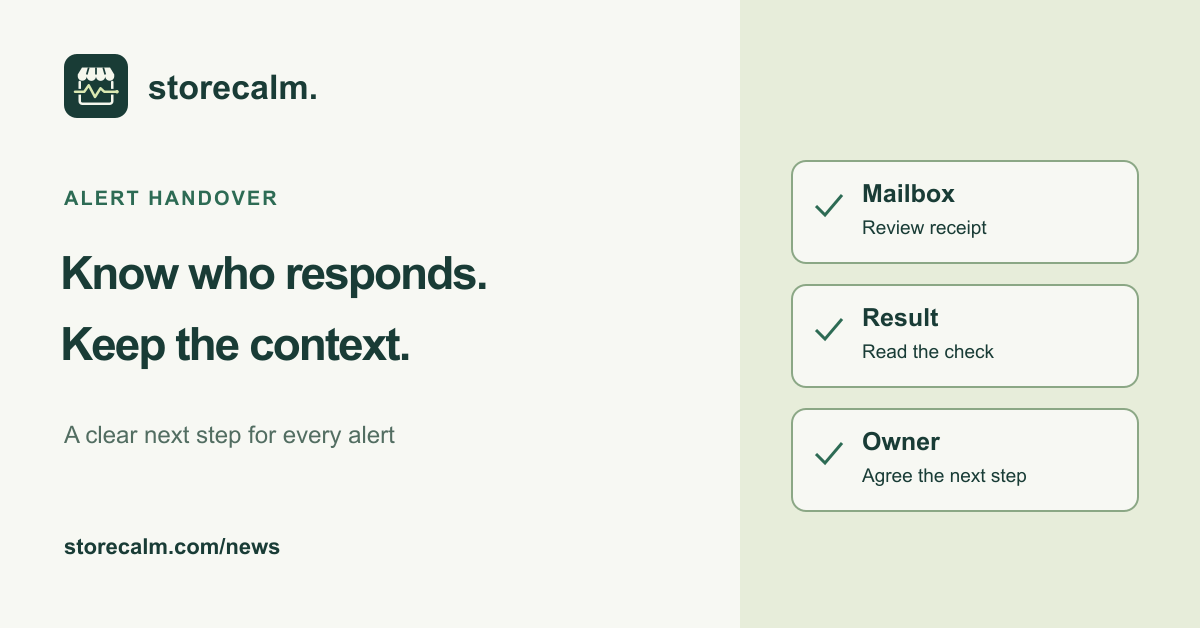
A monitoring message is useful when someone knows what to do with it. Before a weekend handover, agree who reads your StoreCalm incident and recovery emails, what they will review and how an unresolved issue reaches the next person. Keep that working agreement alongside the store setup rather than assuming an alert automatically means someone is investigating.
Review receipt separately from configuration
Our setup guide describes incident emails to the workspace contact and a test alert available from the dashboard. With the responsible administrator, review the intended receiving mailbox and agree a controlled test that your team expects. Record actual receipt and check the spam folder if necessary. A configured address alone does not establish that a message reached the inbox.
Give the receiving mailbox a named owner and a backup contact in your team's own handover. These are working arrangements for your team, not a claim that StoreCalm provides an escalation rota. Agree how the person on cover will obtain access through your normal process without putting passwords or recovery codes in the handover note.
Read the result behind the message
Our getting started guide explains that two consecutive failed checks open an incident and send an email. A later successful check resolves the incident and sends a recovery email. Read that sequence with the configured store and check result. It does not, by itself, establish the underlying cause or show that every shopper journey has been verified.
For checkout monitoring, automatic browser checks stop before order submission and payment. Healthy describes one configured run. Inconclusive needs investigation and is not Healthy. A recovery message is not proof of a completed purchase, every gateway working or every destination being available. Keep separate payment and store reviews with the responsible people.
Leave context and a next action
Record which store and check are involved, when the result was observed and what the next person should inspect. Include recent known changes as context rather than assigning blame from timing alone. WooCommerce's checkout troubleshooting guide makes the same diagnostic distinction: a loading spinner alone does not identify its cause.
Keep confirmed observations separate from open questions. Name the person handling the next action and the point at which your own team should escalate it. Automatic monitoring emails do not create a round-the-clock human response commitment. Our current compatibility and support page describes the service boundaries.
The StoreCalm product guide and plans are linked here, together with the free StoreCalm Connector download. Use those details to understand what is monitored, then keep the alert handover current when the store, team or configured journey changes.
Sources and further reading
- StoreCalm: Getting started and alert meanings
- StoreCalm: Checkout monitoring guide
- StoreCalm: Compatibility and support
- WooCommerce: Endless loading/spinner on the checkout page
Sources checked on 26 October 2026.