A backup is useful only if you know what it contains and how you would restore it. Before your next planned plugin update, take a few minutes to check both. For a store that keeps receiving orders, the restore plan deserves as much attention as the backup itself.
Check the files and the database
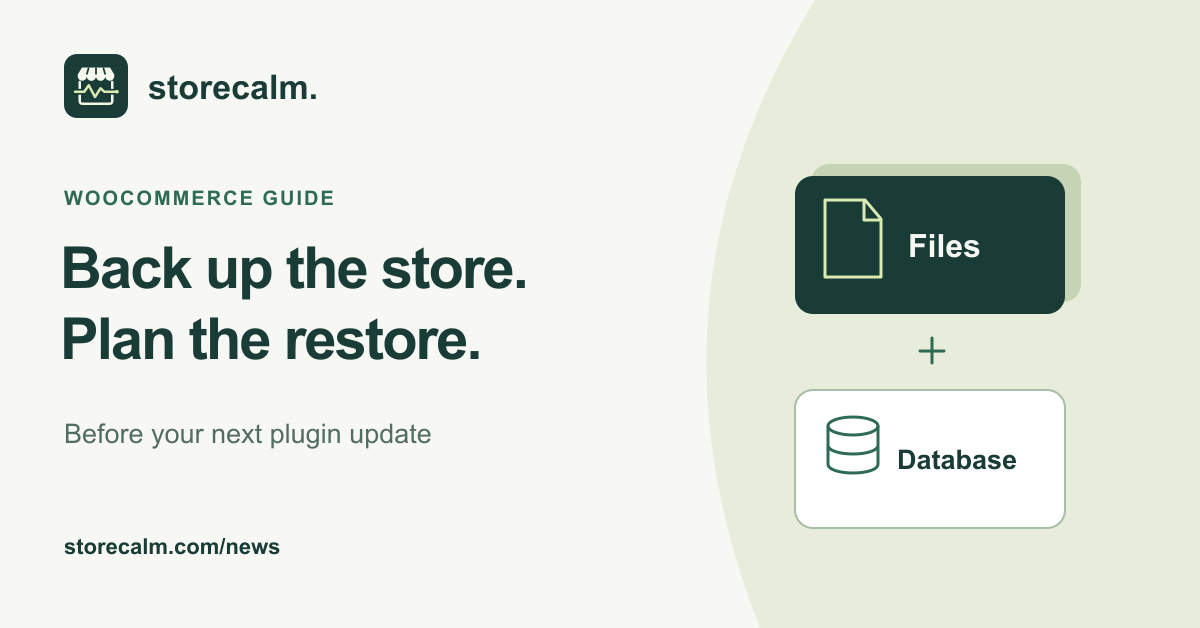
A typical WordPress store needs two parts for a full restore: its files and its database. Themes, plugins and uploads belong to the files. Store records, including products, orders and settings, live in the database. Downloading the WordPress directory alone does not usually capture that database.
Keep the two parts together as a coordinated backup set, taken around the same time. Record the timestamp and where you can find the set. Ask your host to confirm which files, database tables and configuration it includes. A successful backup notification is a useful starting point, but it does not answer every question about restoring the store.
Decide how you would protect recent orders
Imagine that the backup was taken at 09:00 and the store received more orders before a problem appeared. Restoring an older database could remove records created after that backup. Before choosing a rollback, agree with your host or developer how those newer orders and other changes would be preserved and reconciled.
Write down who can perform the restore, where the instructions are kept and how to contact them. If the process depends on opening a support ticket, find out what information the host needs. Keep access details in your normal secure system, rather than in a shared maintenance checklist.
Try the planned update on staging
WooCommerce recommends a current backup and a staging test before updating the live store. Use a separate copy to try the software changes your store actually needs, including relevant extensions, the theme and payment gateways.
Make a short checklist based on how customers use your store. Check a product, its options, the cart and checkout. Include your shipping and tax rules and any extension that changes the buying journey. Keep test payments and order emails controlled so a rehearsal does not confuse customers or trigger live fulfilment.
After staging checks pass, agree a live maintenance window and follow the update instructions. Handle any required database update before treating the work as finished. A regular schedule helps with planning, but an urgent security fix or a broken store function may need earlier attention.
Use checkout monitoring with its limits in mind
After the update, review the live store and the checkout flow again. Our StoreCalm monitoring can add a separate signal by checking a configured anonymous journey from cart to checkout. It stops before order submission or payment.
A Healthy result describes that configured run. It does not prove that a customer can complete a payment, and an Inconclusive result needs investigation. If your review calls for a test order, arrange an appropriate test payment workflow separately. StoreCalm does not perform that transaction or provide a backup and restore service.
Keep a record you can use next time
Before closing the maintenance task, note the backup timestamp, the changes applied and the checks completed. Record anything that still needs a person to follow up. This gives the next person a practical starting point if a later issue needs investigation, without turning a green status into a promise about every possible purchase.
Sources and further reading
Sources checked on 4 October 2026.