A cached page can make a store feel quick, but a shopper needs their own cart and checkout. Before you send campaign traffic to your WooCommerce store, take a few minutes to review which pages your caching setup excludes. This is an evergreen maintenance check, especially useful after changes to your host or performance settings.
Check the three dynamic pages
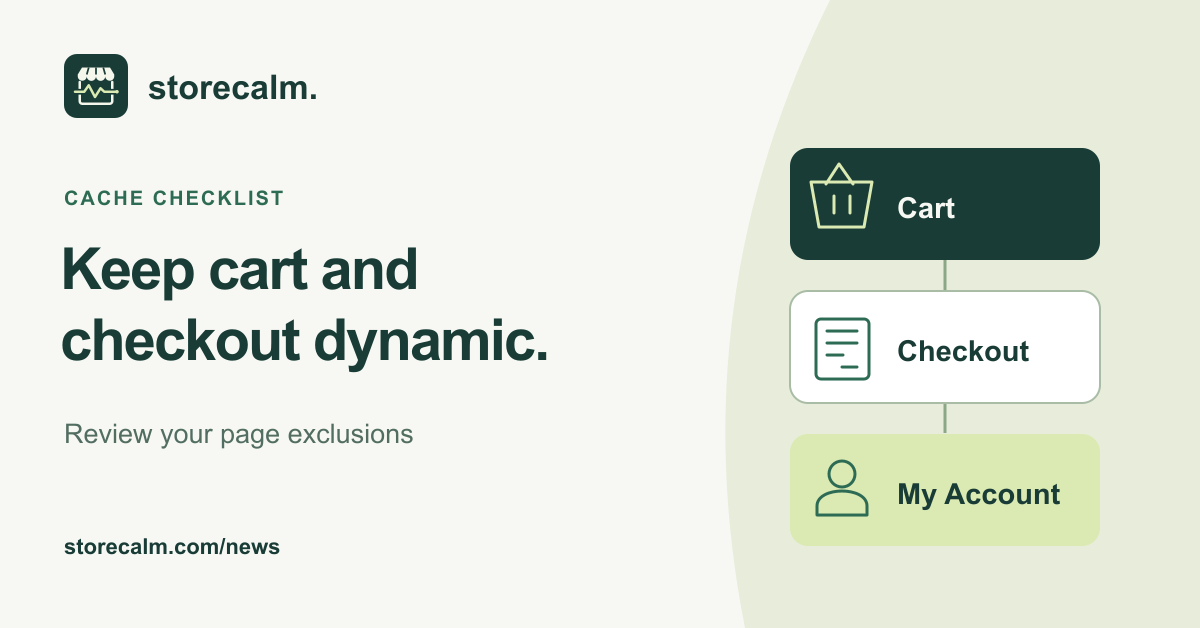
WooCommerce recommends excluding Cart, Checkout and My Account from caching because their content depends on the current customer and cart. Many caching plugins already handle these pages. Confirm the exclusions in the system you actually use, rather than assuming a default is still in place.
Use the live page addresses assigned to your store. If you renamed a page or changed its address, review whether the cache rule follows it. A rule for an old checkout address is not enough. Your team can keep a short record of the page addresses, the caching system responsible and the date they were reviewed.
Include the host in the review
A WordPress plugin may be only one part of your setup. Ask your host which caches serve the store and where WooCommerce exclusions are managed. Follow the instructions for each system. Database and session cache handling depends on the particular plugin or host, so a configuration copied from another store may not fit yours.
After correcting an exclusion, clear the relevant plugin and host caches using their documented controls. Then open a private browser window to check the page again. Clearing cached content removes an old copy; the exclusion rule is what prevents the same problem from returning. Record both actions when handing the task to someone else.
Repeat a small shopper journey
Choose an in-stock product and start a fresh anonymous session. Add it to the cart, change the quantity and compare the displayed basket with what you selected. Continue to checkout and check that the cart contents and totals remain consistent. Stop before submitting an order during this readiness review.
Repeat the selected journey in a separate fresh session and on a phone. Look for stale quantities, missing content or a page that does not load. Note the URL, expected result, observed result and time. These observations help your host or developer investigate, but they do not establish that caching caused the issue.
Follow up when the page still fails
WooCommerce lists several possible causes for missing or blank store pages, including page assignments, permalinks and plugin or theme conflicts. If the cache review does not resolve the symptom, continue with its troubleshooting guide. Plan disruptive diagnostic changes with your developer on staging, and keep a backup and recovery route available.
A useful campaign handover is brief: who checked the pages, which settings changed, what was retested and who owns any unresolved issue. Keep that record with your other preparation notes so the next person can repeat the same checks.
Use monitoring as another signal
Our StoreCalm monitoring follows a configured anonymous journey to checkout. It stops before order submission or payment. Healthy describes that run, not every customer's cart or a completed purchase. Treat Inconclusive as a result to investigate.
Use monitoring alongside your cache review and wider store checks. The product guide and free StoreCalm Connector download are linked on this page. Review the setup and monitoring boundaries before connecting a store; a checkout readiness signal does not replace a controlled payment test.
Sources and further reading
- WooCommerce: How to configure caching plugins
- WooCommerce: Pages not displaying
- StoreCalm: Checkout monitoring guide
Sources checked on 6 October 2026.