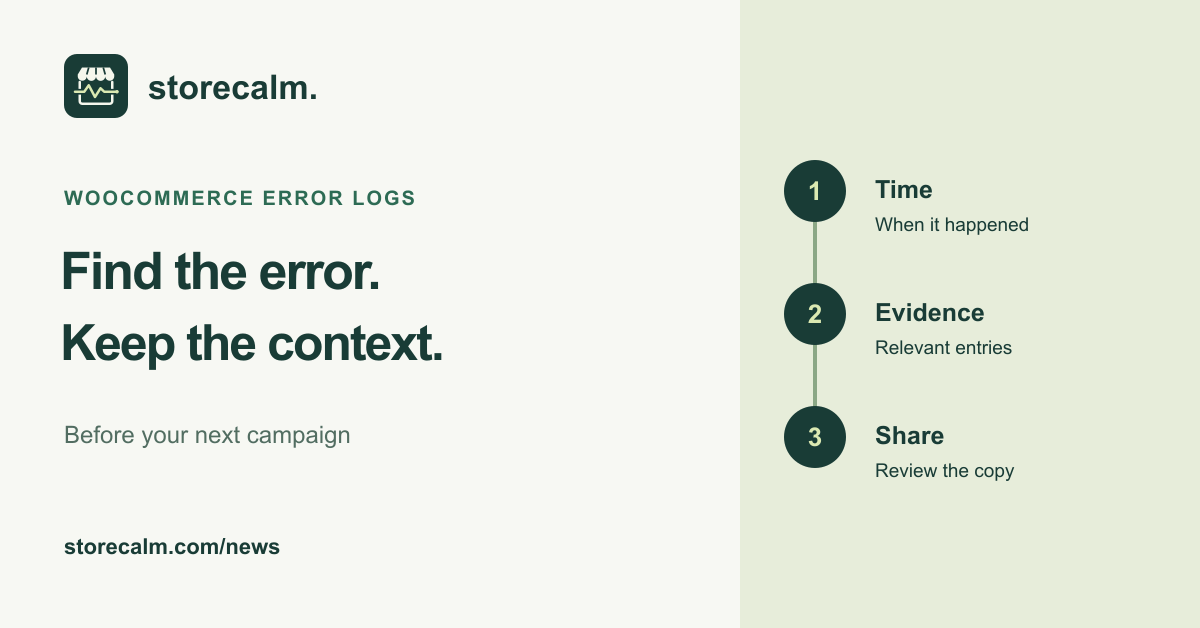
A useful error report connects what you saw in the shop to a dated log entry. Before your next campaign, agree how your team will collect that evidence if a page or cart behaves unexpectedly. This evergreen guide covers the review and handover, so an investigation can start with more than a screenshot.
Start with the observed problem and its time
Write down the affected page, the time and timezone, the steps you followed and what you expected to happen. Record whether the issue appeared once or on a repeat visit. Keep this short description beside the log evidence so someone else can understand which event you are investigating.
Use a test product and suitable test data when trying to reproduce the issue. Avoid placing another live order merely to obtain an error message. If the problem involves payment, follow the gateway developer's controlled testing instructions and keep the test separate from normal customer activity.
Find the relevant entries, then read their context
WooCommerce points to WooCommerce > Status > Logs as a first place to look for PHP fatal errors. Choose the relevant file and time period, then read the entries around the event. The fatal-error record can include a timestamp, message, code file and line, and a stack trace.
A message near the reported time is evidence to examine, not a complete diagnosis. Note the exact wording and surrounding entries before assigning a cause. WooCommerce also explains that its fatal-error log does not include web server errors such as timeouts. If the required evidence is absent, ask your host which server log covers the request.
Keep additional debugging in the test environment
The WordPress debugging handbook recommends local or staging use for its debug tools, rather than enabling them on a live site. It distinguishes saving messages to a log from displaying them in the page. Ask the person responsible for development to follow that guidance if the existing logs are insufficient.
Agree the purpose and duration of any extra logging before the test. Keep the record of what was enabled, who owns the investigation and when the temporary setup will be reviewed. An investigation should not leave unfamiliar diagnostic settings running after the original issue has been resolved.
Review the copy before handing it over
Create a relevant excerpt for the appropriate support channel. Check the copy for customer details, credentials and private URLs before sharing it. Preserve the error wording, time and necessary technical context in the reviewed excerpt. Keep the original securely for your own investigation, and explain any redactions to the recipient.
Our StoreCalm checkout checks provide a separate signal about a configured anonymous product-to-checkout journey. They stop before order submission or payment. Healthy describes that run, not proof of a completed purchase or an explanation of an error log. Inconclusive needs investigation. The monitoring product guide and free StoreCalm Connector download are linked on this page.
Sources and further reading
- WooCommerce: Finding PHP error logs
- WordPress: Debugging in WordPress
- StoreCalm: Checkout monitoring guide
Sources checked on 14 October 2026.