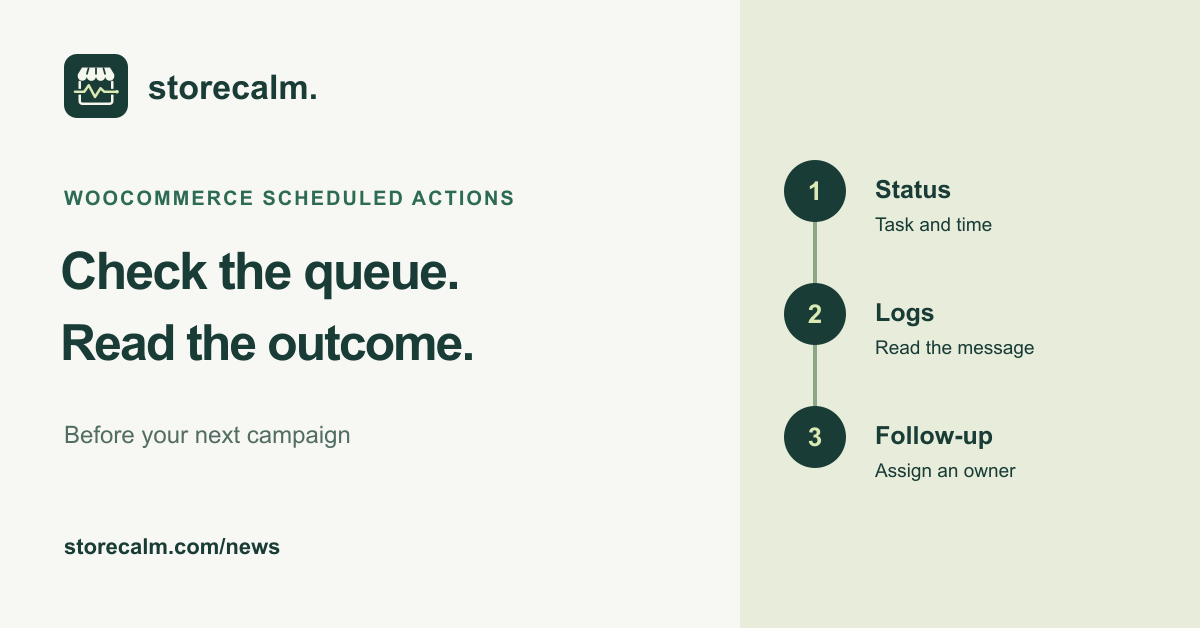
A store can answer a browser request while a background task still needs attention. Before your next campaign, include WooCommerce scheduled actions in the operational review. This evergreen guide gives your team a small, repeatable way to inspect the queue and record what needs follow-up. It is a separate review from reaching checkout.
Read status and scheduled time together
Open WooCommerce > Status > Scheduled Actions. Review the status filters and scheduled times, and use the hook or group to narrow the list when you are investigating a particular extension. A pending action scheduled for the future is different from one whose scheduled time has already passed.
Record the relevant action, its scheduled time, the time of your review and the observed status. Keep the timezone in those notes. Look for a repeated pattern before describing the queue as stuck. A single screenshot or the total number of pending actions does not explain what should have run.
Confirm how scheduled work is triggered
WordPress documents that its default WP-Cron scheduling is triggered by page loads rather than running continuously like a system scheduler. Low traffic can therefore delay work that relies on that default. WooCommerce explains how Action Scheduler uses this scheduling mechanism and how a server-side setup can provide an alternative trigger.
Ask the person responsible for hosting to confirm the setup your store actually uses. If an alternative trigger is configured, investigate that route rather than assuming more page visits will solve the problem. Keep observations separate from a proposed configuration change.
Read the failure before choosing a remedy
For a failed action, inspect its log entry and note the exact message, time and owning extension. Compare the record with recent store changes without treating timing alone as proof of a cause. Follow the relevant extension documentation when deciding what to do next.
Before manually running a task, understand its purpose and possible effects. Some background work concerns notifications or payments. Do not use a blanket rerun or deletion as a substitute for diagnosis. Give the issue an owner and record the outcome after a reviewed remedy, including whether the same failure returns.
Keep checkout monitoring as a separate signal
Our StoreCalm checkout monitoring adds a configured in-stock product to an anonymous cart and opens checkout. Its automatic checks stop before order submission or payment. Healthy describes that configured run; it is not proof that every background task completed. Inconclusive needs investigation.
Use the monitoring result alongside your scheduled action review. Keep a short list of open issues, their owners and the next check time before sharing a campaign. The StoreCalm monitoring product guide and free Connector download are linked on this page so you can review the product scope and setup.
Sources and further reading
- WooCommerce: Scheduled actions
- WordPress Developer Handbook: WP-Cron
- StoreCalm: Checkout monitoring guide
Sources checked on 13 October 2026.