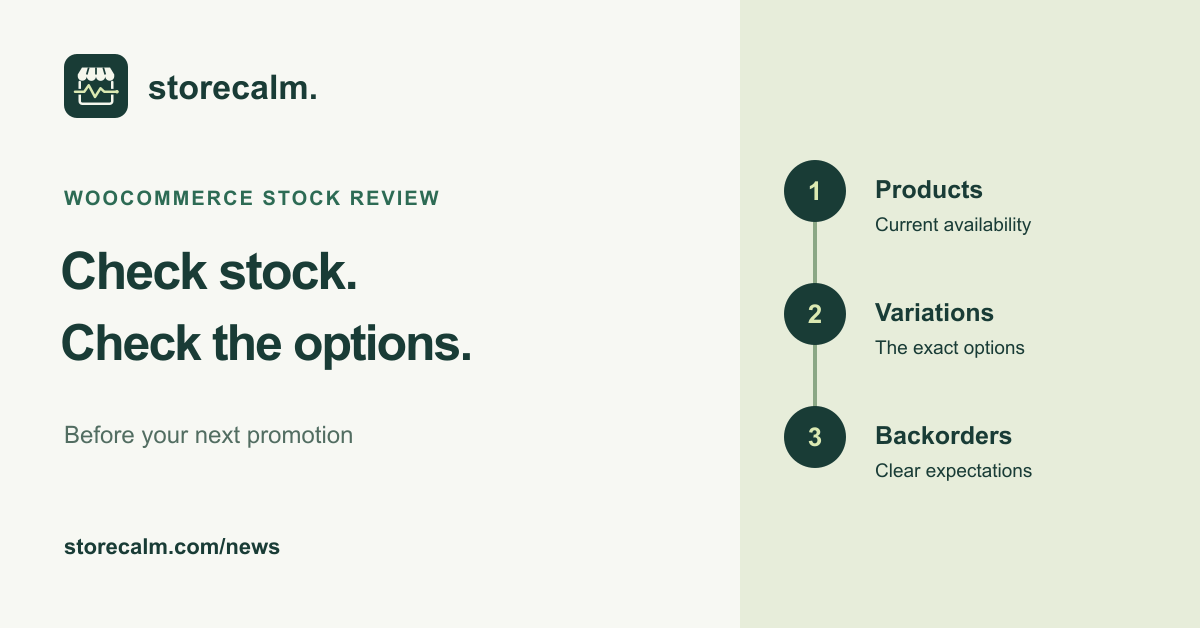
Before sending shoppers to a product, check that the options you advertise are available. A product can appear in the catalog while a particular size or colour is unavailable. This evergreen guide gives your team a short stock review to use before the next promotion, alongside your normal checkout checks.
Know how your store tracks stock
Start at WooCommerce > Settings > Products > Inventory. Confirm whether managed inventory counts are enabled. Without them, WooCommerce relies on the stock status you set rather than keeping a quantity count. A product marked In stock is therefore not, by itself, evidence that its recorded quantity matches your warehouse.
Review the promoted products individually. Check their quantities or manual stock status against your current stock records. Include the out of stock threshold and catalog visibility setting in your notes, so the person updating a product knows what customers should see when availability changes.
Check the exact options in the offer
For a variable product, establish whether stock is shared at product level, tracked separately for each variation, or uses both approaches. Then open the product as a shopper and select the size, colour or other combination shown in your campaign. Check its availability and whether it can be added to the cart.
WooCommerce documents that a parent product can remain visible when at least one variation is in stock. Hiding unavailable variations depends on the inventory settings, including variation-level stock management and disabled backorders. Do not assume that a visible product means every option is available. Review the actual choices your theme presents.
Make backorders a deliberate decision
Inspect the backorder setting on each relevant product or variation. If you allow backorders, check the wording shoppers see before adding the item to their cart. Make sure it agrees with the delivery expectations in your offer. An item with no stock can still be available to order when backorders are allowed.
Record any mismatch, the affected product or variation, and who will correct it. Recheck the storefront after the change. This review concerns availability and customer information; reaching checkout alone does not establish that an advertised item can be fulfilled.
Keep the monitoring product suitable
Our StoreCalm checkout monitoring uses a configured in-stock product in an anonymous cart and opens checkout. Choose a representative product and review that configuration when stock or product options change. A successful check is not a review of the whole catalog or every variation.
Automatic checks stop before order submission or payment. Healthy describes the configured run, and Inconclusive needs investigation. Use that result alongside your stock review and separate payment testing. The StoreCalm monitoring product guide and free Connector download are linked on this page.
Sources and further reading
- WooCommerce: Products Settings, inventory
- WooCommerce: Product Editor Settings, inventory
- WooCommerce: Variable Products, inventory and visibility
- StoreCalm: Checkout monitoring guide
Sources checked on 11 October 2026.