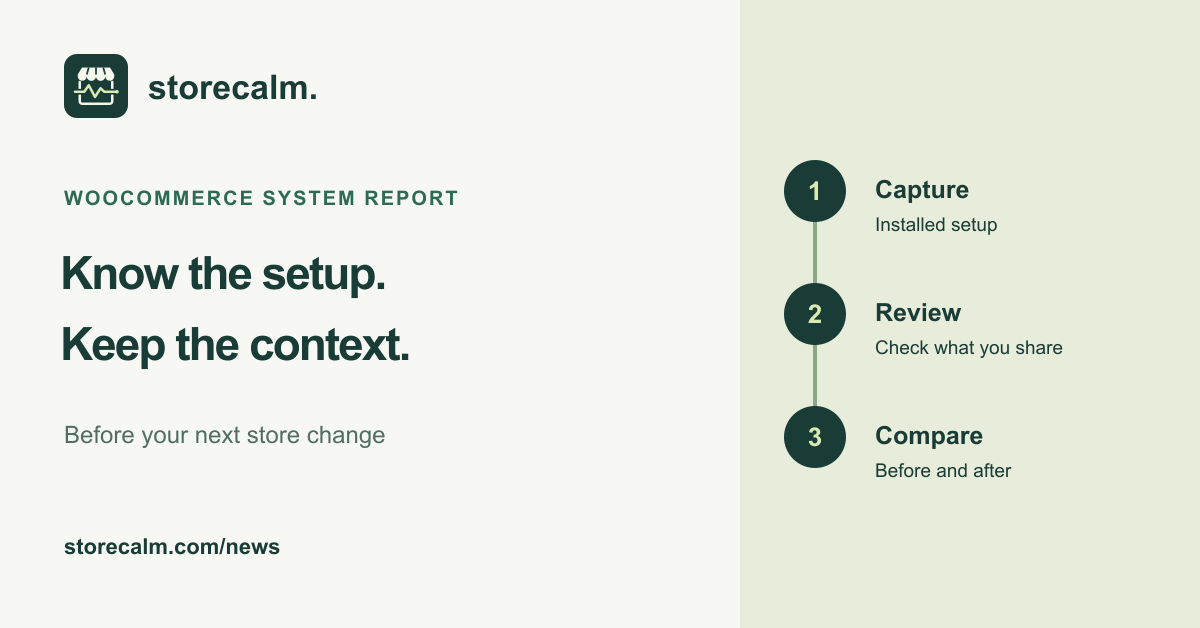
A plugin change is easier to discuss when your team knows what was installed beforehand. Before the next planned store update, save a small record of the setup and the reason for the change. This evergreen checklist helps you create useful diagnostic context without treating a report as proof that checkout works.
Capture the setup you actually have
In WooCommerce > Status, select Get System Report. The documented controls let you copy the report for support or download it. It includes installed software versions and configuration details, such as the WordPress environment, server, plugins and theme. Save a dated copy in a place your team controls and identify whether it came from staging or production.
Read the values from your own report. Example versions and settings in documentation illustrate the format; they are not a compatibility promise or a list of requirements for your store. Record the change you intend to make separately, including the component involved and the person responsible for checking it afterward.
Add the question behind the report
A configuration snapshot needs a little context. Add the affected public page, what you expected to happen, what you observed and the time of the observation. If you are preparing an update rather than investigating an incident, say so. Keep the original snapshot so a later report does not silently replace the earlier evidence.
WordPress also provides Tools > Site Health > Info, with configuration details and a copy feature. Its Info tab is informational; you cannot change those settings there. Keep that information separate from the Status tab, which highlights issues and recommendations. Reading either screen is a starting point for a review, not permission to run an unrelated cleanup or repair.
Review what you share, then check the changed journey
Before sharing a report, review the actual export for details that should stay private. Send only what the intended support recipient needs through an appropriate support channel. Keep credentials, customer information and unrelated screenshots out of the handover. After an agreed change, capture the relevant setup again and repeat the affected customer journey. A changed version number alone does not establish why an issue appeared or disappeared.
Our StoreCalm monitoring product offers a separate signal about a configured anonymous product-to-checkout journey. Automatic checkout checks stop before order submission or payment. Healthy describes that run, not the system report or a completed purchase. Inconclusive needs investigation. The product guide, plans and free StoreCalm Connector download are linked on this page so you can compare monitoring with your own operational checks.
Sources and further reading
- WooCommerce: Understanding the System Status Report
- WordPress: Site Health screen
- StoreCalm: Checkout monitoring guide
Sources checked on 17 October 2026.